 Printerdriver USB
06.10.2015
Printerdriver USB06.10.2015
|
<< Click to Display Table of Contents >> Navigation: Help for self-help > Installation Printerdriver >
|
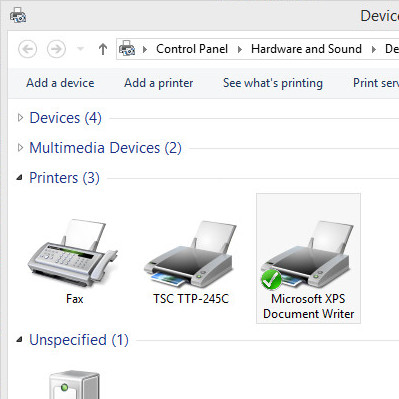
Here the installation of a printerdriver is shown exemplarily at a TSC TTP-245C.
As soon as the printer is connected to the USB port on the PC and is switched on, windows tries to install the printer automatically. Normally this wont work, because Windows is lacking the correct driver for that printer.
Now you can find the printer in the device manager. There it is listed at "Other Devices".
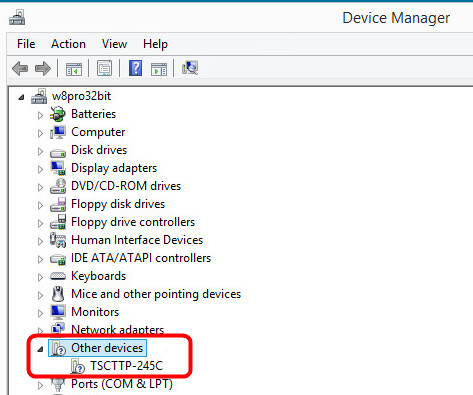
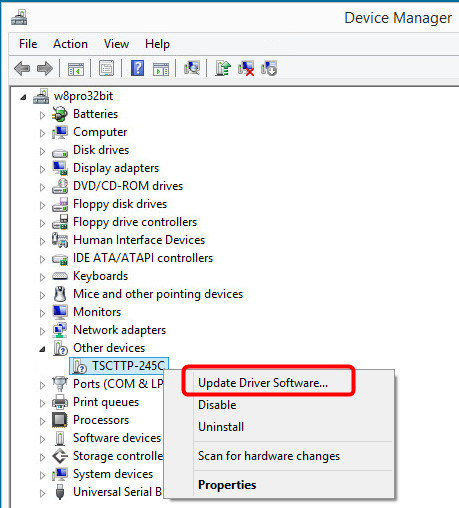
Click with the right mouse button on the printer and choose "Update Driver Software".
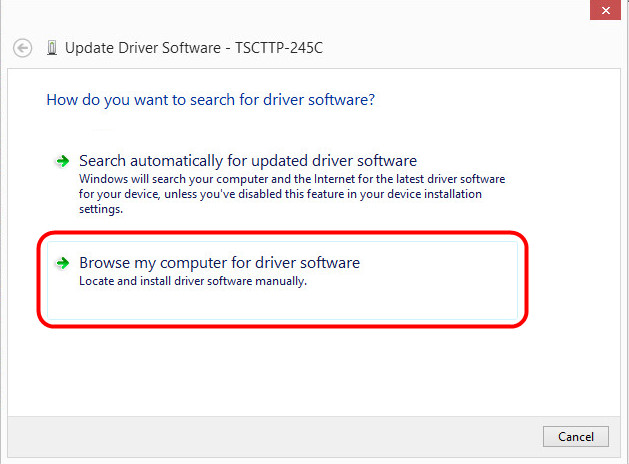
In the following Window choose "Browse my computer for driver software".
Now choose "Let me pick from a list of device drivers on my computer"
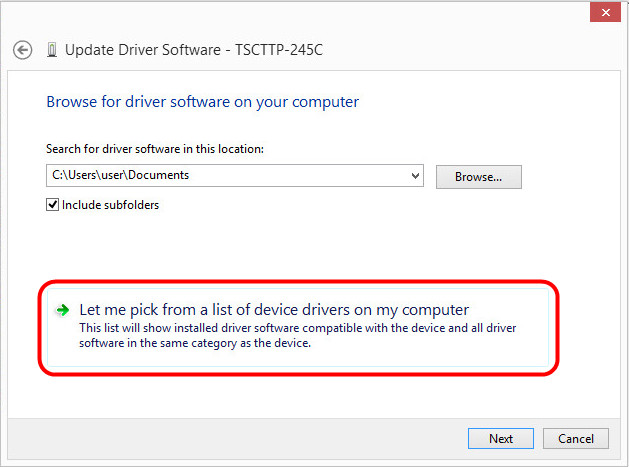
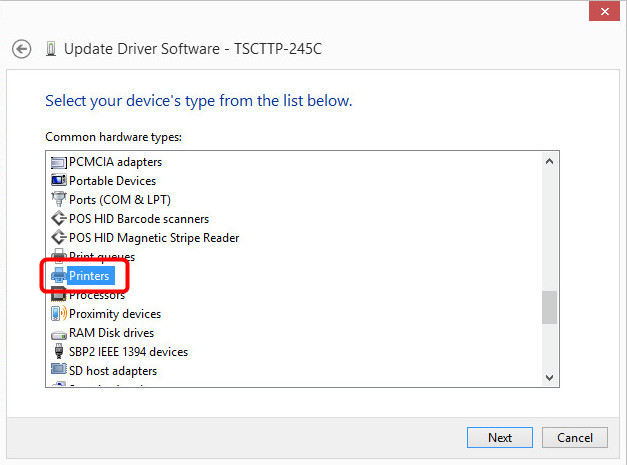
As devicetyp please choose "Printers".
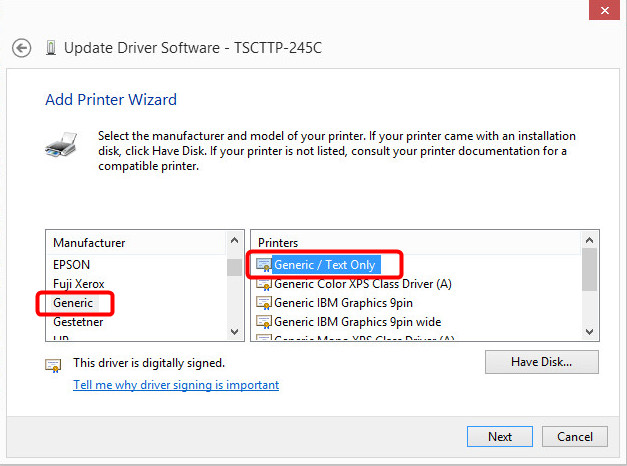
The manufacturer for all thermal transfer printers which are used with eXtra4, eXtra4/2 or eXtra4winIII is always "Generic" and the printer "Generic / Text Only".
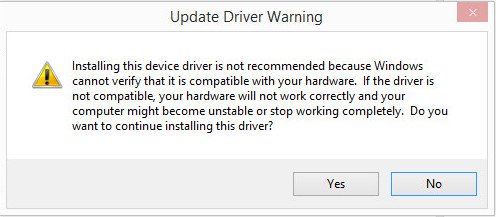
Windows warns that a not recommend driver was choosen, what can be ignored. Please click "Yes".
Now a message appears, which informs about the successful finishing of the installation.
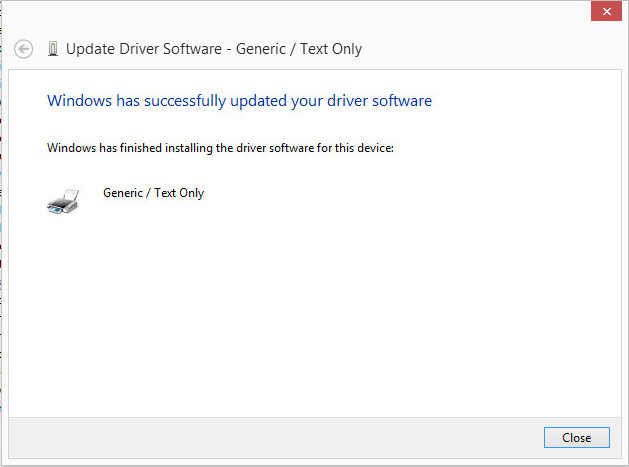
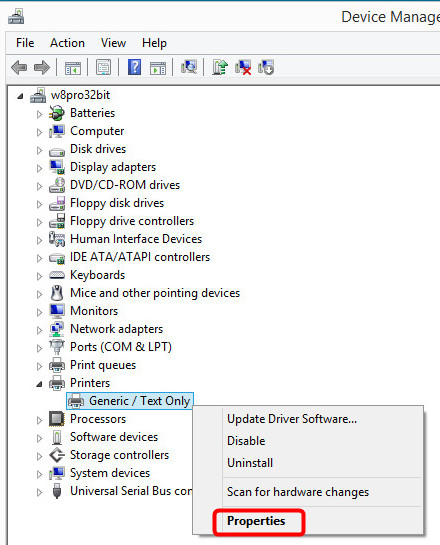
The device is now shown correctly at the category "Printers". Now you can name the printer to finalize the installation.
Please click with the right mouse button on the printer "Generic / Text Only" and choose "Properties".
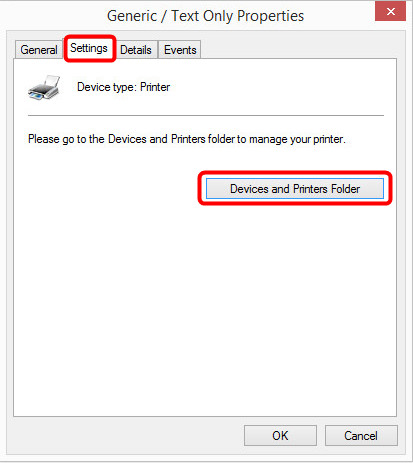
Click the "Settings" tab and then click the button "Devices and Printers Folder".
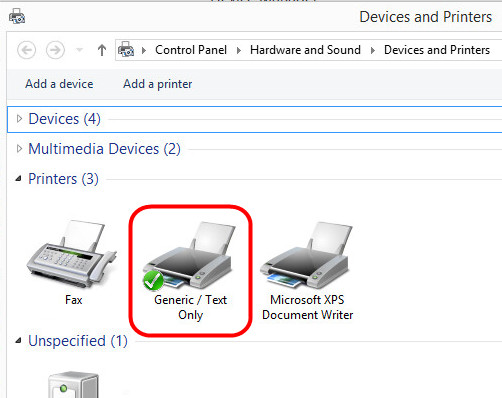
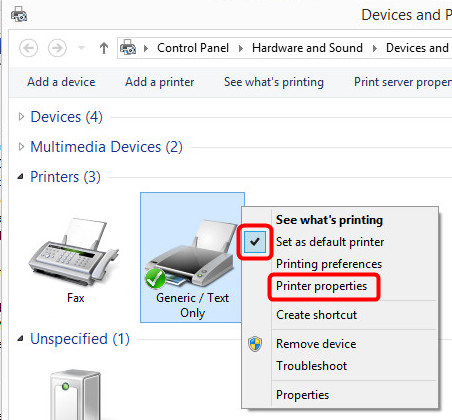
Here you will find the newly installed printer.
Click with the right mouse button on the printer.
In the following picture you can see, that the printer is set as the default printer (recognizable on the checkmark on the icon). You should change this immediately by making another printer the default printer.
Afterward please choose "Printer properties".
Here you can change the name of the printer. Confirm the changes with "OK".
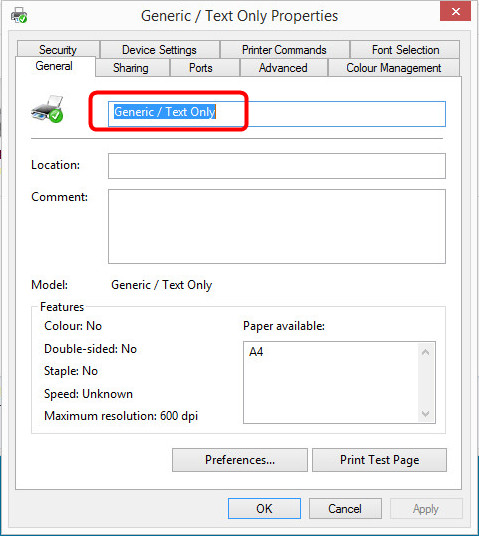
This was the last step of the installation. Now you can use the printer within eXtra4, eXtra4/2 or eXtra4winIII.